


(Architecture Guide)
You can use a standard Azure App Service paired with Azure Private Link, Application Gateway, and VPN to build a highly secure and production ready environment. This architecture allows clients located in your private network or on-premises to securely access an app, while safely exposing the app to the internet via a Web Application Firewall (WAF), eliminating direct exposure from the public internet.
When you use this architectural pattern for your app, you can:
- Secure your app by configuring a private endpoint and disabling direct public network access.
- Securely connect to your app from on-premises networks that connect to the virtual network using a VPN.
- Safely expose the app to the public internet using an Azure Application Gateway with WAF.
- Maintain a functioning CI/CD pipeline using a self-hosted build agent within the virtual network.
- Significantly reduce costs by avoiding the need for a dedicated Azure App Service Environment (ASE).
Important This architecture is applicable for Windows and Linux apps, containerized or not, hosted on the following App Service plans: Basic, Standard, PremiumV2, PremiumV3, PremiumV4 and Functions Premium and Flex Consumption.
Conceptual overview
Azure App Service is a powerful PaaS offering, but by default, it does not offer the same network isolation as IaaS or an App Service Environment (ASE). While an ASE solves this problem, it is often expensive.
In most scenarios, you can achieve the same security and network isolation outcomes using modern Azure networking capabilities.
The pattern is based on four core services:
- Azure App Service: Hosts the web application.
- Azure Private Link: Provides a private endpoint in your VNet for the App Service.
- Azure Application Gateway (WAF): Provides secure, inspected public access.
- Azure VPN Gateway: Provides hybrid connectivity to on-premises networks.
Additionally, a self-hosted CI/CD agent is deployed inside the virtual network to ensure deployment pipelines continue to function once the App Service is isolated from the public internet.
High-Level Flow
- Internet traffic flows through the Application Gateway (WAF), which then forwards the traffic to the App Service via the Private Endpoint.
- On-premises traffic flows through the VPN Gateway into the VNet, and then to the App Service via the Private Endpoint.
- CI/CD traffic originates from a self-hosted agent inside the VNet and deploys directly to the App Service via the Private Endpoint.
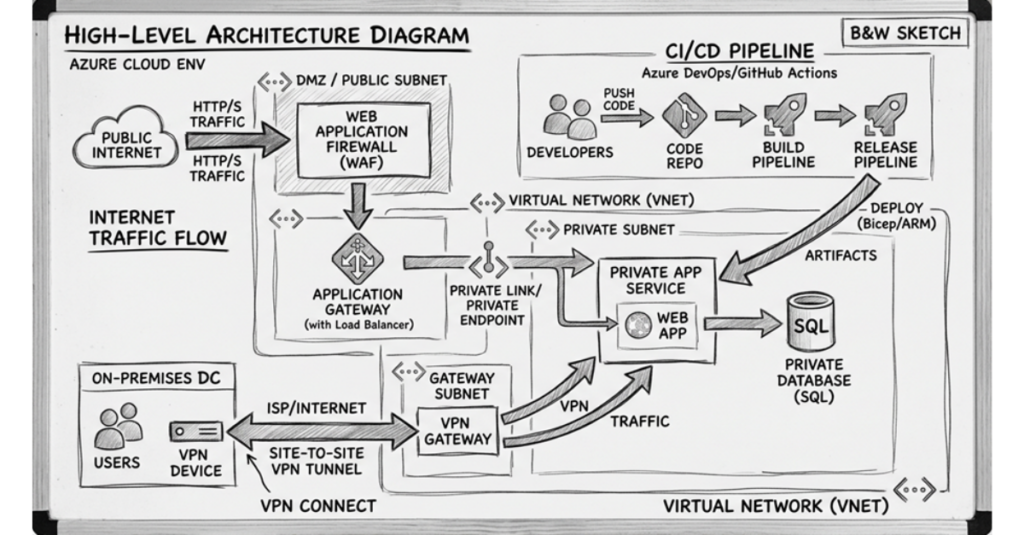
Step 1: Deploy the Network Foundation
Architecture begins with the network. You must create a dedicated Virtual Network (VNet) with clear subnet separation.
- Private Endpoint Subnet: Dedicated for the App Service Private Link.
- Application Gateway Subnet: Required for the App Gateway deployment.
- GatewaySubnet: Required for the Azure VPN Gateway.
Design principles:
- Ensure there are no overlapping CIDR blocks.
- Size the subnets to accommodate future growth.
- Align the design with Azure Landing Zone standards.
Step 2: Enable Hybrid Connectivity
To allow on-premises infrastructure to communicate with the Azure environment, configure an Azure VPN Gateway.
Typically, this involves:
- A Site-to-Site VPN connection.
- Defined address spaces that do not conflict with your Vnet’s.
Once established, Azure and on-premises networks can communicate securely.
Step 3: Add the Private Endpoint
This is the turning point of the architecture. Using Azure Private Link, you connect the App Service to the VNet.
When you create a private endpoint:
- The App Service is assigned a private IP address from your VNet.
- Traffic between the VNet and the App Service flows entirely over the Microsoft backbone network.
Docs: Use private endpoints for Azure App Service apps
DNS configuration
Private endpoints must be resolved via DNS, not IP. If DNS is misconfigured, connectivity will fail.
When you deploy a private endpoint, the domain name system (DNS) entry is updated to point to a canonical name: mywebapp.privatelink.azurewebsites.net. You must set up a private DNS server or an Azure DNS Private Zone (privatelink.azurewebsites.net) and register the A record for your app using the private endpoint IP.
Step 4: Lock Down Public Access
To make the app truly private, you must configure App Service access restrictions.
- Navigate to the Networking blade of your App Service.
- Under Access Restrictions, configure the rules to:
- Allow: Only traffic originating from the Private Endpoint IP
- Deny: All other traffic.
Direct internet access to the .azurewebsites.net URL will now result in an HTTP 403 Forbidden error, while internal traffic remains allowed.
Step 5: Add Secure Internet Entry (WAF)
To allow controlled external access, deploy an Azure Application Gateway with Web Application Firewall (WAF) enabled.
Configuration requirements:
- Assign DNS name and a Public IP to the Application Gateway.
- Enable the WAF policy (Prevention mode).
- Set the backend pool to the App Service Private Endpoint.
Critical detail: In the HTTP settings of the Application Gateway, you must override the hostname to match the App Service FQDN (e.g., mywebapp.azurewebsites.net). Private Link requires the correct host header to route traffic appropriately.
Step 6: Configure CI/CD with a Self-Hosted Agent
Once the App Service is locked down, Microsoft-hosted deployment agents will no longer be able to reach it over the internet. Deployments will fail.
To resolve this, deploy a self-hosted CI/CD agent inside the VNet.
Configuration:
- Deploy a VM or Virtual Machine Scale Set (VMSS) in the same VNet (or a peered VNet).
- Ensure the agent’s DNS is configured to resolve the App Service’s private endpoint.
- Provide outbound internet access (via NAT Gateway or Azure Firewall) so the agent can communicate with Azure DevOps, GitHub, and package repositories.
- No inbound ports are required for the agent; it connects outbound only.
Docs: Self-hosted agents
Securing the Kudu (SCM) Endpoint
You must lock down the Kudu (SCM) deployment endpoint (mywebapp.scm.azurewebsites.net).
You can achieve this in two ways:
- SCM Private Endpoint: Create a second DNS record and private endpoint specifically for the scm sub-resource.
- SCM Access Restrictions: Navigate to the App Service Networking > Access Restrictions, switch to the SCM site tab, and add an Allow rule specifically for the Virtual Network subnet where your self-hosted Azure VM agent resides. Deny all other traffic.
Docs: Restrict access to an SCM site Private Endpoint for SCM
Step 7: Enable VNet Integration for Outbound Traffic (Optional)
It is critical to understand that a Private Endpoint only handles inbound traffic to your App Service.
If your App Service needs to initiate connections to other private resources inside your VNet (such as an Azure SQL Database over Private Link, a Redis Cache, or an other internal App Service), you must configure Virtual Network Integration (VNet Integration).
Configuration requirements:
- Requires a dedicated empty subnet in your VNet (e.g., AppServiceIntegrationSubnet).
- Outbound traffic from the App Service will be routed through this subnet.
- You can force-route all outbound internet traffic from the App Service through a NAT Gateway or Azure Firewall by enabling VNet Route All.
Docs: App Service Virtual Network Integration Configure Azure App Service VNet Integration
Summary of Connectivity
After completing all configuration steps, the routing behaves as follows:
Scenario
Result
Direct internet access to App Service
Blocked (403 Forbidden)
Internet access via Application Gateway (WAF)
Allowed
On-premises access via VPN
Allowed
CI/CD deployment via Self-hosted agent
Allowed
Common pitfalls
- DNS Misconfiguration: Failing to configure the Private DNS Zone is the most common reason for connectivity failures.
- Missing Access Restrictions: Forgetting to explicitly deny public network access leaves the App Service publicly reachable.
- No CI/CD Planning: Locking down the network without setting up a self-hosted agent will immediately break deployment pipelines.
- Incorrect TLS setup: Deploying the Application Gateway without proper HTTPS certificates in production environments.
For more details on specific components, see Use Private Endpoints for Apps – Azure App Service and What is Azure Application Gateway integration with Azure App Service?
Cost Comparison: App Service vs. ASEv3
One of the biggest drivers for this architecture is cost. While Azure App Service Environment (ASE) provides excellent isolation, it comes at a significant premium, especially when configuring for high availability (Zone Redundancy).
To illustrate the difference, here is a price comparison for running a comparable highly available (3 instances), zone-redundant setup in the East US region with a 3-Year Savings Plan:
Compute Tier
Configuration
Estimated Monthly Cost
Premium V4 Tier (P2V4)
3 instances (4 vCPU, 16 GB RAM), Linux OS
~$295
Isolated V2 Tier (ASEv3 – I2V2)
3 instances (4 vCPU, 16 GB RAM), Linux OS
~$930
Prices are estimated based on Linux OS, 3-year savings plan, in East US. They do not include the cost of Private Endpoints, Application Gateway, or VPN.
As you can see, utilizing a standard App Service (Premium V4) with Private Endpoints is over 3 times cheaper than running an Isolated V2 environment, while still achieving the security and network isolation.
Conclusion
Combining Private Link + WAF + a Self-hosted CI/CD agent provides an enterprise-grade architecture without the enterprise-grade price tag. For the vast majority of organizations, this represents the perfect “sweet spot” between security and cost optimization.
If your strict regulatory compliance mandates that the compute infrastructure itself cannot be multi-tenant at the hardware level, ASE remains the only path. For everyone else, this is the way forward.
What’s Next?
If you are looking for secure ways to connect your App Service to on-premises resources but do not have a VPN Gateway or ExpressRoute available, there is another powerful alternative.
In my next article, I will break down how to use Hybrid Connections in Azure App Service — a solution that allows you to securely reach on-prem databases and APIs without opening inbound firewall ports or configuring complex VNet peering. Stay tuned!
Golo